Incipe Workspace
- Aug 2022 – Aug 2026
- Timeline
- Design Engineer
- Role
Overview
How do you get a beginner from an idea to working hardware?
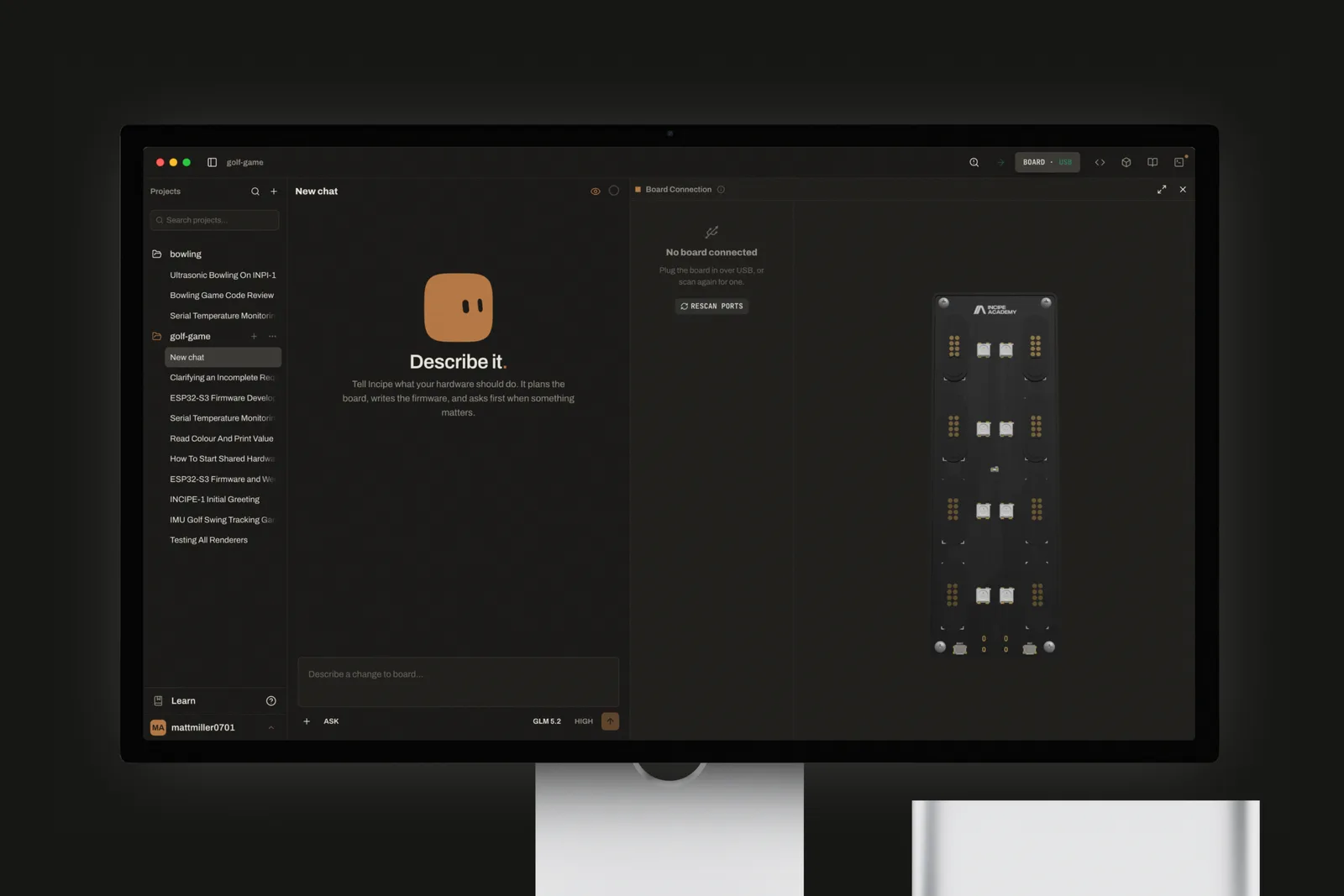
Incipe Academy teaches hardware to beginners. Incipe Workspace is its desktop app: describe what your hardware should do, and an AI agent plans the board, writes the firmware and shows every live connection in 3D. I designed and built it.
Problem
One sensor took six steps before you could build anything.
Most beginners give up somewhere in this list, long before they reach their idea. And both paths still end in the same place: the application logic is the part they actually came to write.
Traditional setup 6 steps
- Read datasheets & register maps
- Wire & power the sensor
- Install & integrate drivers
- Write configuration & reading code
- Calibrate & debug readings
- Build data logging
Incipe 2 steps
- Snap in the sensor
- Read it with one line of code
Integrate, deploy & test
Application logic is needed either way.
Solution
Incipe cuts it to two.
Snap the sensor into Incipe Board, then read it with one line of code using the Incipe libraries. Incipe Workspace mirrors every live connection on screen, so learners see the effect of each change the moment they make it.
- US$48K
- revenue in the first three months
- 80K
- social media views in three months
- Top Performer
- HKSTP Incubation 2025
Onboarding
Unboxing the board is a moment worth marking.
Someone opening Incipe for the first time has just unboxed a new board. So the first run treats it as an occasion rather than a settings form: "Build it." on a black screen, the Incipe mark resolving out of a blur, then the mascot saying hello. Only then does it ask you to plug in your board and pick a project, and it hands you straight into the workspace.
Live preview
You see the board connect before you have to trust it.
With hardware, the first doubt is always whether anything is connected at all. Visibility of system status is one of the oldest rules in interface design, and here it is the whole point. The board preview is a live 3D model of the real board: plug in a sensor and it appears in the slot it is actually in, labelled with its port, while the connection panel beside it shows the USB port that was found. Nobody has to guess, and nobody has to read a log.
Craft
Every default I caught became a rule.
When AI writes most of the code, the interface drifts toward defaults: a card inside a card, three dots at the end of every label, a coloured stripe down the side of a box. None of it is a decision. It is what you get when nobody decides.
So I kept a running log. Every time I caught a default, it became a written rule, and most rules became a test that fails the build if the slop comes back. A few of them:
- One thing gets one surface. A field that is already a card does not get another card around it.
- Text that runs out of room fades out. It never ends in three dots.
- Status glows softly at the edge. It is never boxed in by a hard outline.
- No accent stripe down the edge of a box. It is decoration pretending to be information.
- A row of controls reads as one object: everything the same height, and the gaps tell you which buttons belong together.
Apply these rules to every screen of the app:
- Never put a card inside a card. A field that is already a surface gets no second surface around it.
- Truncate overflowing text with a fade mask, never an ellipsis.
- Show status as an edge tinted at 35% of the status colour, never a solid 100% outline.
- Never add a coloured accent stripe to the edge of a box.
- Control rows: every control 24px tall, 4px between controls in a group, 8px between groups.
- Write a test for each rule that fails the build when it is broken.
Panels
Panels follow your hand, not a timer.
The side panels open and close by dragging their edge, and the panel goes wherever the pointer goes. Drag past the edge of the window and back without letting go, and the panel is still there. Nothing is decided until you let go.
Opens at once
I cut the entrance short. In a tool people use all day, a panel should be there the moment you ask for it.
Warns before it closes
Pull a panel too far and it starts to lean away and fade, as if it is about to leave. Ease off and it settles back.
Comes back from the edge
Hover the sidebar button to peek at your projects without docking the panel. Hover the left edge of the window and a tip shows a click brings it back.
A closed panel is never far away. The smallest tug on its edge brings it out right under your hand, and a click puts it back at the width you left it. There is no seam line to hunt for, only a small grip that grows while you hold it.
Build resizable side panels that open and close by dragging their edge:
- Capture the pointer for the whole drag, so leaving the window and coming back keeps the drag alive. Decide only on release.
- Arm the collapse once the pointer is 200px past the panel's minimum width: lean the panel 20px toward its exit and fade it to 50% opacity. Release to close; drag back to cancel.
- From a closed edge, a 4px pull opens the panel under the pointer. A click docks it at the width it was last left at.
- Keep the entrance near-instant.
- No seam line. The grip is a 3px pill, 24px tall at rest, growing to 40px while dragging.
- Hovering the sidebar button peeks the panel without docking it. Hovering the window's left edge shows a tip that a click reopens it.
Press
Everything you can press, presses the same way.
Press anything in the app and it gives a little under your finger, like a real key, and dims as if you are holding it down. It is a dip, not a drop, and nothing floats up just because you hovered over it.
Letting go of a list row has a tiny bounce to it, the only spring in the whole app, so a release feels like letting go of something. Menus work like the ones on a Mac: press to open, slide to your choice, release to pick. They arrive the moment you ask and leave with a quick fade.
Give every pressable element one shared press state:
- On press: scale to 98% over 0.2s and dim slightly. No lift or shadow on hover.
- List rows return on an overshooting spring curve, the only overshooting curve in the app.
- Menus open on pointer down and select on pointer up.
- Menus enter instantly and exit with a 90ms opacity fade.
Sensor snap
A plugged-in sensor arrives on screen with a click.
Plug a module into the real board and you watch it happen on screen. The module drops into its slot on the 3D board, gathering speed as if it were falling into place, and lands exactly where it sits in your hand. It dips and springs back like a click, a puff of copper sparks bursts out, and its light comes on.
You hear it too. The click is made fresh every time rather than played from a recording, and it stays low and soft, closer to a knock on wood than a beep, so it feels like touching something rather than being alerted.
Animate a module seating into a 3D board (React Three Fiber):
- Drop the module for 440ms on an accelerating ease-in, landing exactly on the seated model's position.
- On contact, dip and spring back, burst 28 copper particles outward over 0.55s, and turn the module's light on.
- Synthesise the sound live with Web Audio: a short noise click, a low body sliding from 210Hz to 150Hz, then a soft tick.
- Keep every part of the sound below the harsh 2–4kHz band.
Board connect
The board lands in the header as a wave of dots.
When the board connects, its 3D model spins into view and then flies up into the Board button in the header, so you see exactly where it went and where to find it again. As it lands, a ripple of dots spreads across the button.
That ripple replaced a copper outline flash, exactly the kind of hard outline the rule log bans. The dots do not zoom towards you. They were there all along, uncovered by a widening ring. The mascot plays the same ripple, so the two feel related.
When the board connects:
- Spin its 3D model into view, then fly it onto the header's Board button in 460ms.
- On landing, sweep a ring of dots across the button over 760ms.
- Build the wave as a mask: keep the dot grid still and reveal it with a growing ring. Never scale the dots.
- Play the same wave on the mascot.
Agent
The agent is a companion that points, not only a wall of text.
Learning to code alone is lonely, and a long reply is easy to skim past. So the agent comes with a mascot: a small blob that thinks, reacts and keeps a beginner company while they build. Replies render as proper Markdown, with headings, lists and code, so a plan reads like a plan.
When you ask how to do something in the app, the agent does not stop at describing it. It highlights the buttons in the app itself, one coach mark at a time, so the companion works like a pet showing you around the interface.
Corners
Every corner is a continuous curve.
Every corner in the app has the soft, continuous curve of an iPhone icon, rather than a circle stuck onto a straight edge. Where the screen cannot draw it, it quietly falls back to an ordinary rounded corner. And every corner is the same size, so nothing looks borrowed from another app.
Where the curve matters most, I drew it by hand. The blinking cursor in onboarding is a true squircle, and the shader that takes over from it draws the very same curve, so you never see the swap. The mascot's body is one too, softening from squarer to rounder as it shrinks into the message box.
- Use a superellipse matched to Figma's 60% corner smoothing wherever the renderer supports it, and fall back to border-radius where it does not.
- Use one radius for everything: 6px.
- Draw the onboarding caret as a true squircle, and have the shader that replaces it draw the identical curve.
- Morph the mascot's superellipse from squarer to rounder as it shrinks into the composer.
Motion
Blur, fade and morph keep it one moving thing.
A few motion rules kept the app feeling like one continuous thing:
- Blur sells continuity. A plain fade looks like one thing vanishing and another popping in. Add a touch of blur and a slight shrink, and the mascot changing seats reads as the same creature moving.
- Words trade places. "Thinking" drifts up and softens away as "Done" rises in beneath it, so you see the status change instead of missing it.
- Shapes morph instead of cutting. The mascot's outline flows from one shape into the next rather than jumping.
- Exits carry the motion. Things arrive the instant you ask for them. The movement goes on the way out, where it costs you nothing.
- Stagger only when it tells a story. Onboarding unfolds a line at a time because it is a welcome. Panels never do, because you are working.
- Reduced motion keeps the result. It drops the movement, never the content.
- Mascot changing seats: cross-fade with a 3px blur and a 95% scale over 0.28s.
- Status words: swap in 150ms. The outgoing word rises, blurs 2px and fades while the incoming word rises from below, out of the same blur.
- Mascot outline: interpolate between shapes, never cut.
- Entrances are instant or opacity only. Put the travel on exits.
- Onboarding: stagger items 40ms apart, each rising 12px out of a 3px blur over 500ms. Panels never stagger.
- Reduced motion: remove the movement, keep every piece of content.
Built with
Electron, React and a 3D board.
Electron, React and TypeScript, with React Three Fiber for the 3D board, a LangChain and LangGraph agent, and Supabase. The dot-matrix wave was adapted from the sekei-xyz reference, and the mascot from the open-source Bloub.